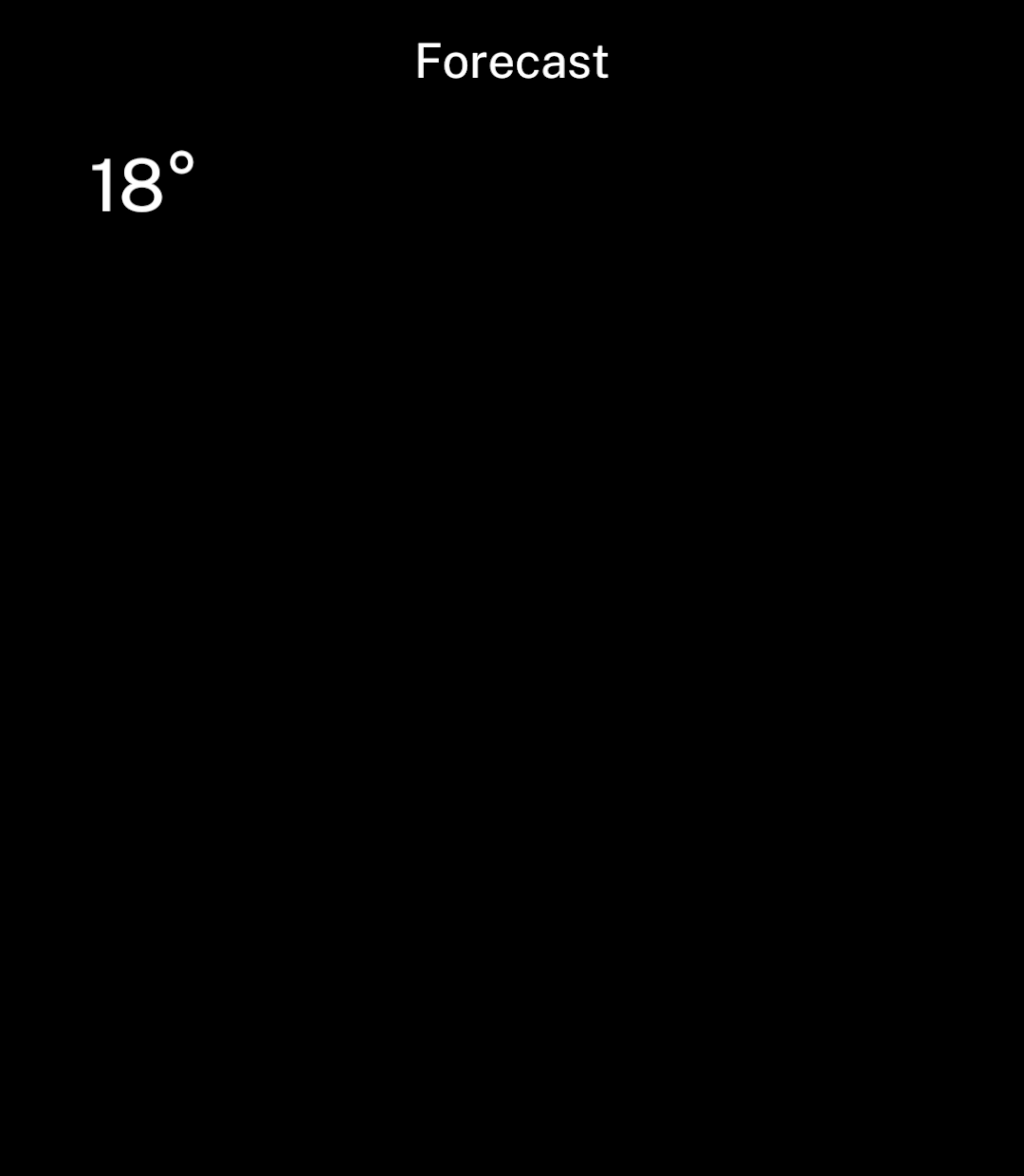
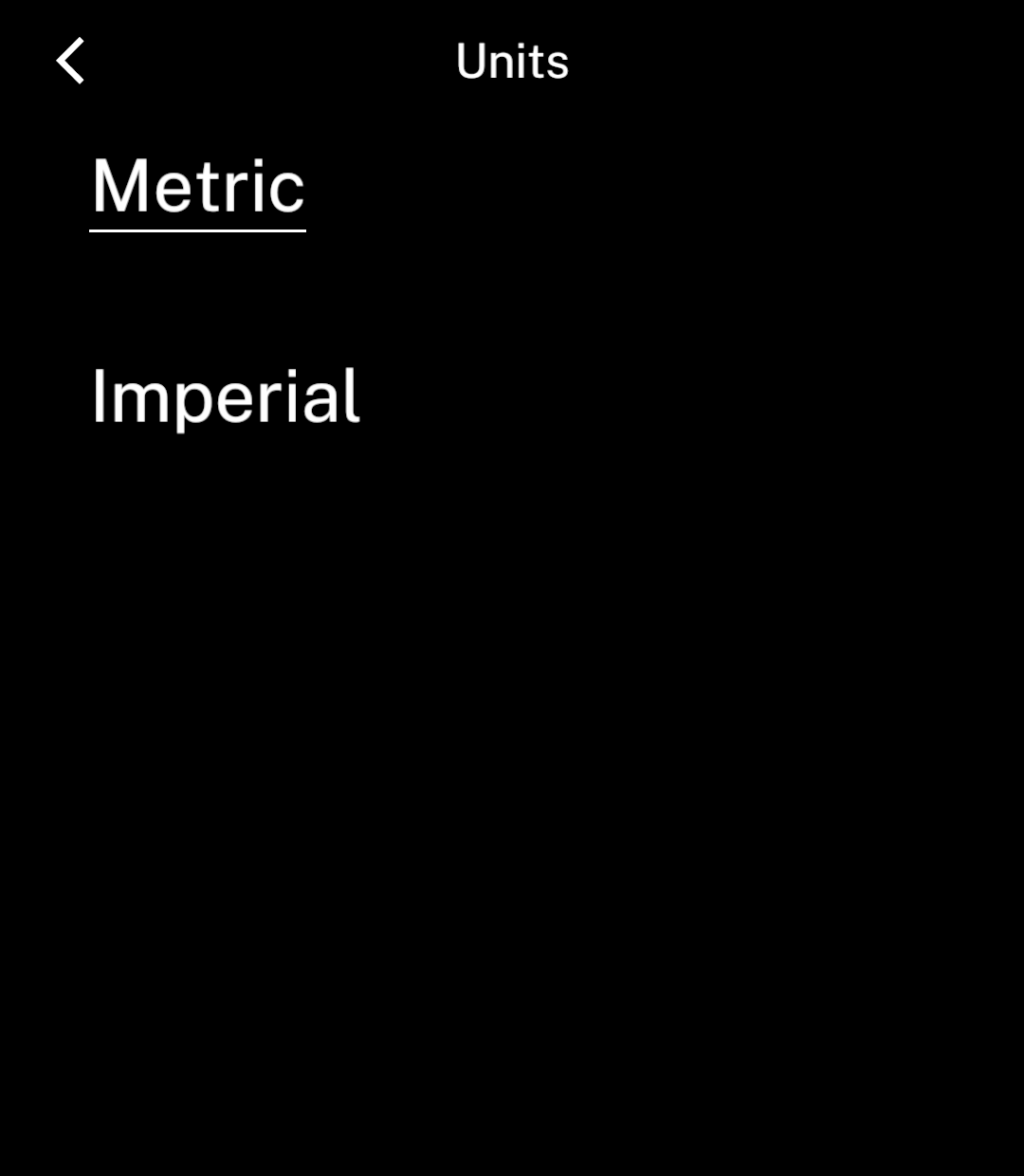
```tsx
import { resource, useSnapshot, Screen, Text, LoadingState, ErrorState } from "ink";
import { getForecast } from "../lib/api";
const forecast = resource({
key: (placeId: string) => [placeId],
load: getForecast,
staleTime: 60_000,
});
export default function Forecast() {
const source = forecast("london");
const result = useSnapshot(source);
if (result.status === "loading") {
return ;
}
if (result.status === "error") {
return
;
}
return
{result.data.temperature}°
;
}
```
The key identifies the cached result. Include every value that changes the response, such as location and units. Keys contain strings, finite numbers, booleans or `null`. Each resource has its own cache.
## Refresh data
| Option | Behaviour |
| --- | --- |
| `staleTime` | How long data stays fresh, in milliseconds. Defaults to `0`. |
| `refreshInterval` | Reloads data periodically while a screen uses it. Omit to disable. |
Both intervals start after a successful load. Opening a screen with stale data starts a refresh and keeps the previous result visible.
Call `source.refresh()` to refresh immediately. It reuses any pending request and resolves when that request finishes. Read errors from the snapshot.
### Refresh errors
A failed refresh keeps the existing data and sets `refreshError`. Inside the loaded screen, offer a retry without replacing its content:
```tsx
{result.refreshError && <>
```tsx
import { back, useAction, Screen, SettingsChoices, Text } from "ink";
import { preferences } from "../lib/preferences";
export default function Units({ value }: { value: string }) {
const save = useAction(async (units: string) => {
await preferences.update(current => ({ ...current, units }));
back();
});
return
{save.status === "error" && {save.error.message}}
;
}
```
Pass the saved value to this component. Await the save before `back()` so the previous page shows the change when it returns.
An action’s status is `idle`, `pending`, `success` or `error`. Repeated calls while pending are ignored. Successful results are available as `data`; failures as `error`. Call `run` with the same arguments to retry. Keep inputs visible while saving, with errors underneath.
## Cache lifetime
Hidden screens stop using their resources. Periodic refreshes stop when no subscribers remain, but pending requests finish. Unused data expires after five minutes, counted from the end of any pending request.
The cache clears when the app restarts. Use [Store](/store) for data that must persist.
Putting the app in the background does not unsubscribe its screen. Use [Background work](/background) for scheduled jobs; resource refreshes do not guarantee background execution.