

Text
Display and format text.
Ink uses Public Sans, with device fonts for missing symbols and Japanese characters. No extra font assets are needed.
Example
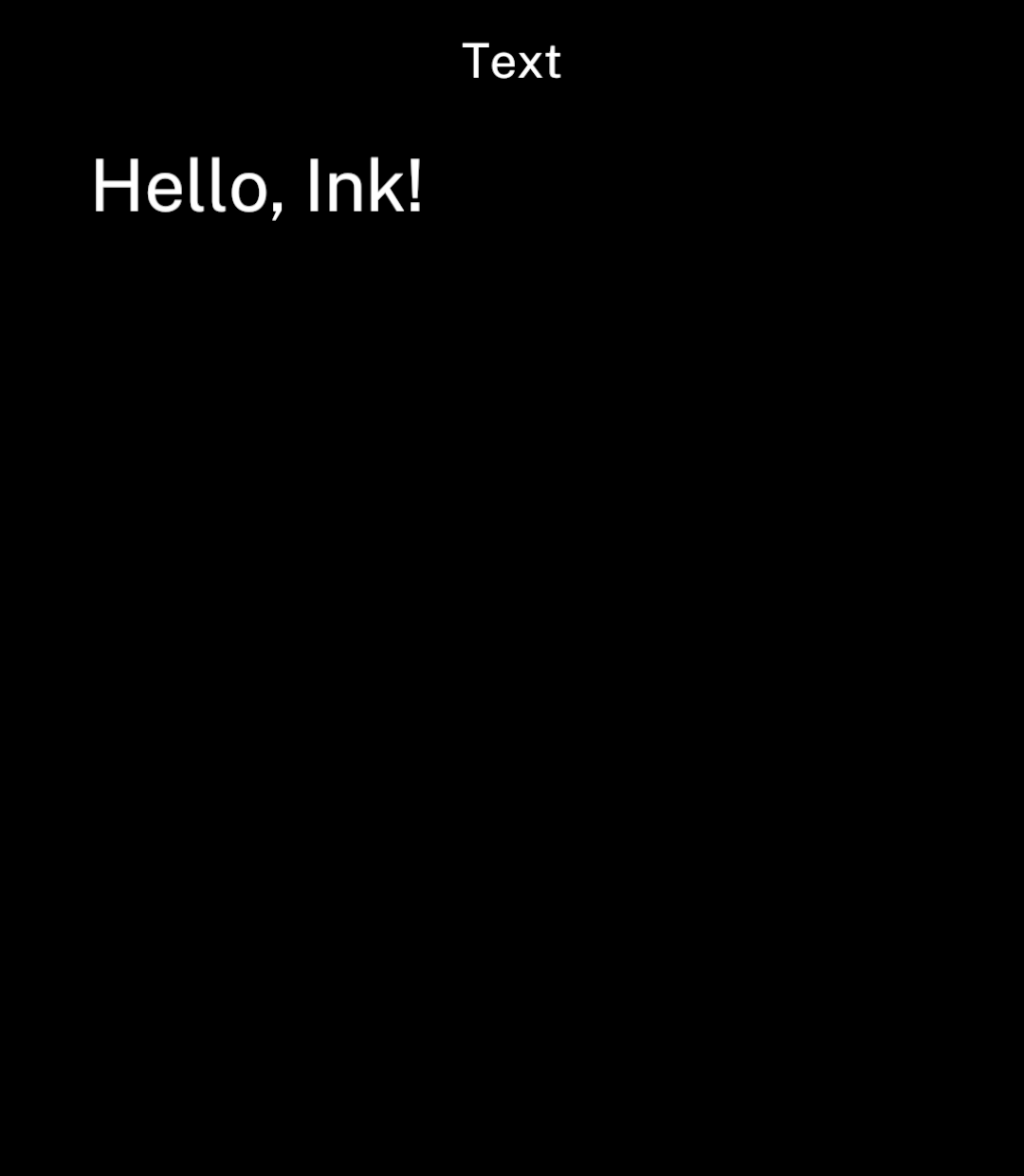
import { Screen, Text } from "ink";

export default function Example() {
  return <Screen title="Text">
    <Text>Hello, Ink!</Text>
  </Screen>;
}
Wrapping and truncation
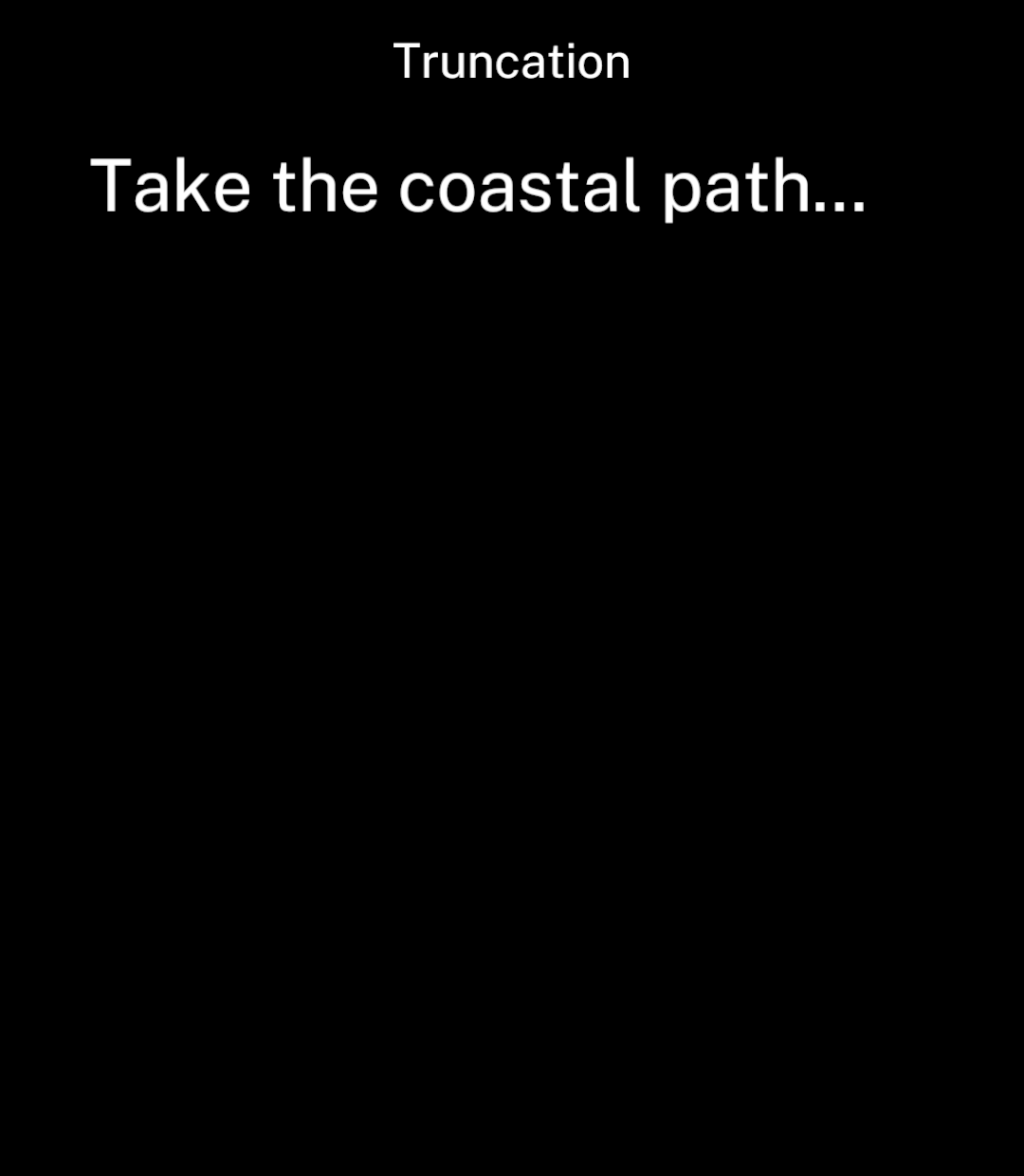
Text wraps automatically. Set maxLines to limit the number of lines.
<Text maxLines={1}>
  Take the coastal path past the harbour and follow the signs to the lighthouse.
</Text>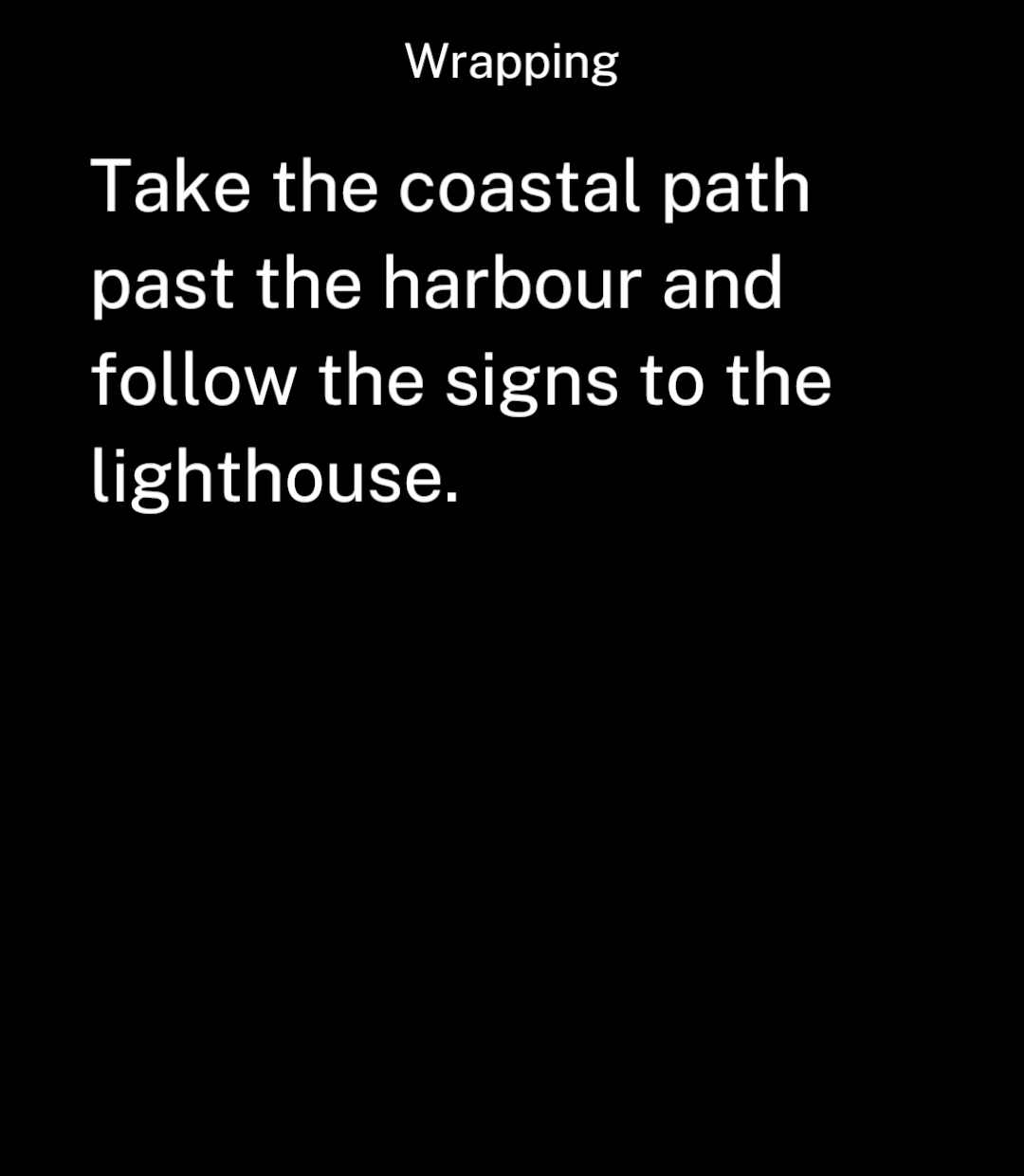
Links
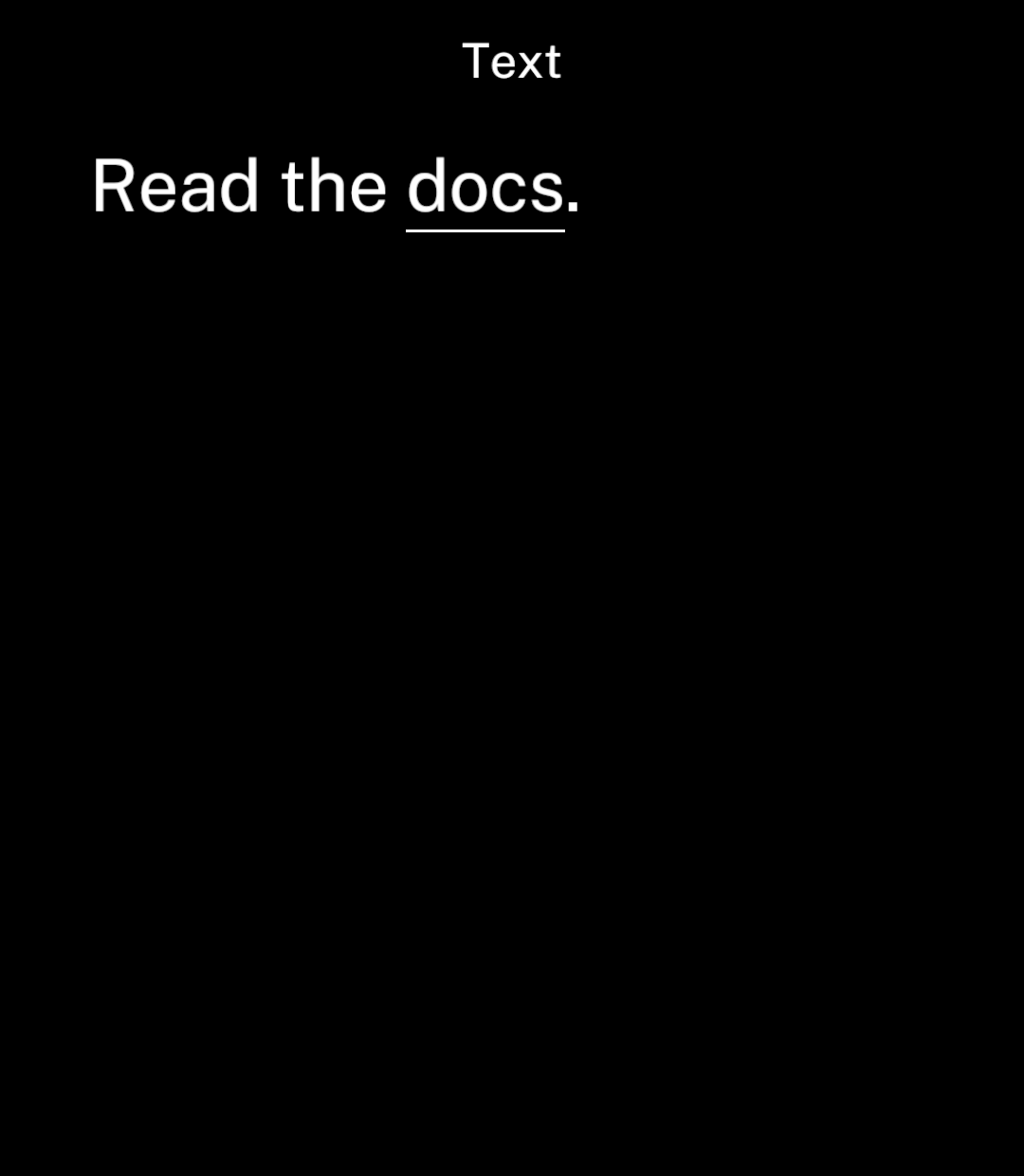
Set url to underline text and open its URL when tapped.
import { Text } from "ink";

<Text>
  Read the <Text url="https://ink.noscroll.ing">docs</Text>.
</Text>
Use onPress instead for a custom action. Plain text does not detect URLs automatically.
Alignment
<Text align="start">Start</Text>
<Text align="center">Centre</Text>
<Text align="end">End</Text>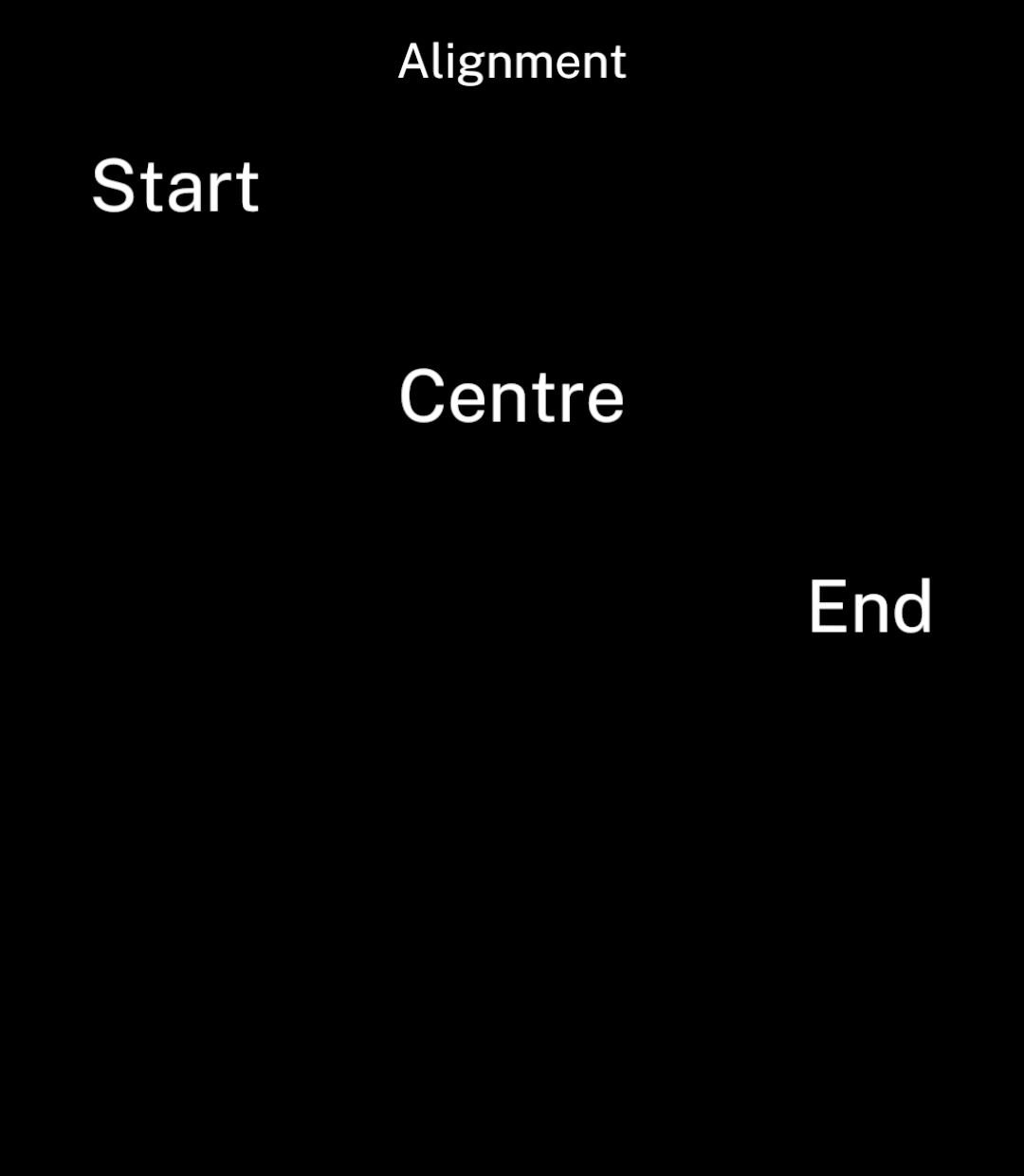
Size
size uses logical layout units.
<Text size={18}>Small text</Text>
<Text size={24}>Larger text</Text>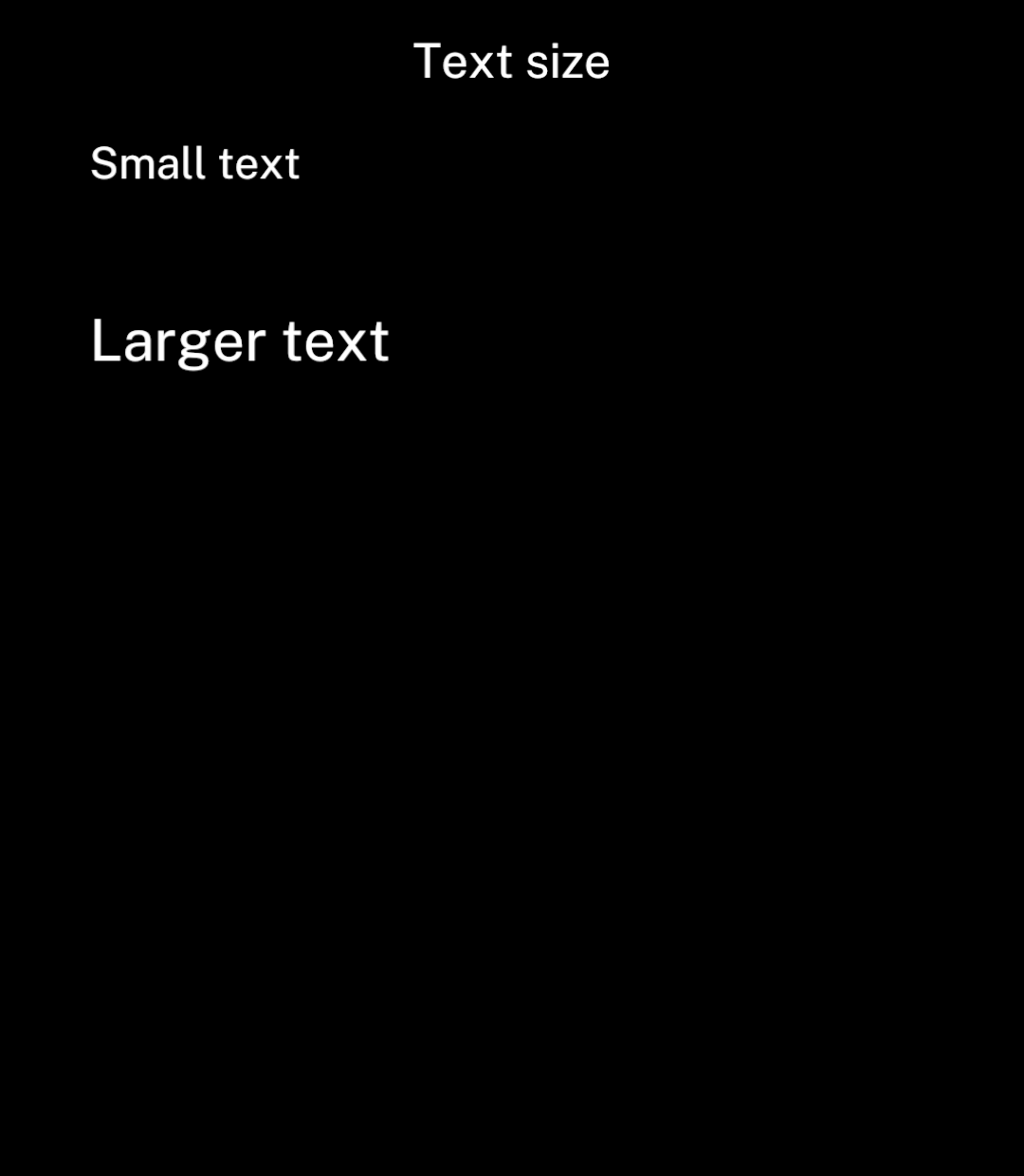
Tabular numbers
tabularNumbers gives digits equal widths so numbers do not shift as they change.
<Text tabularNumbers>{frequency.toFixed(2)} Hz</Text>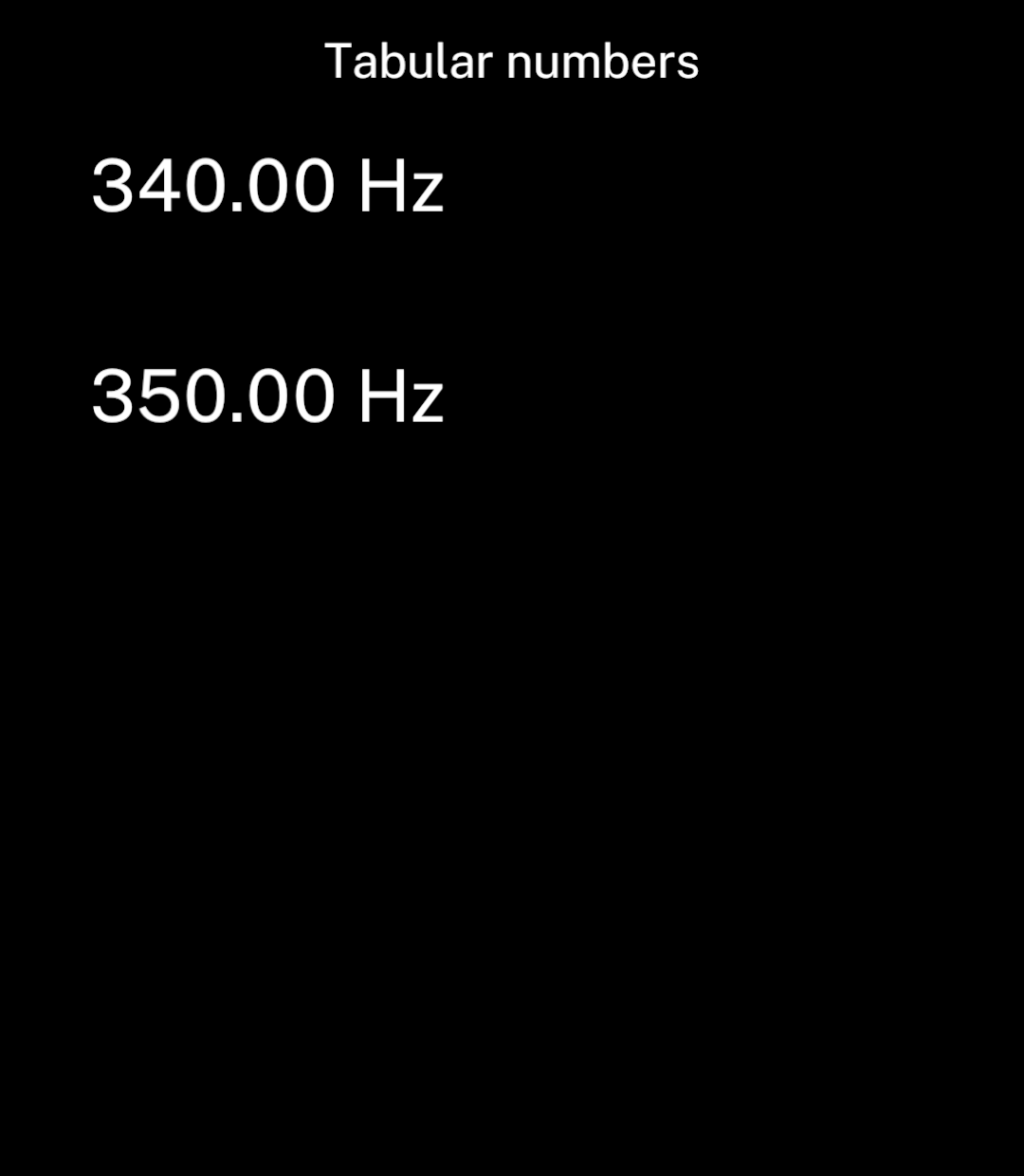
Use width for fixed columns. In a horizontal Stack, text without a fixed width shrinks to leave room for neighbouring controls. Nested Text uses the outer text style.