
Inputs
Text entry with the device’s keyboard.
Example
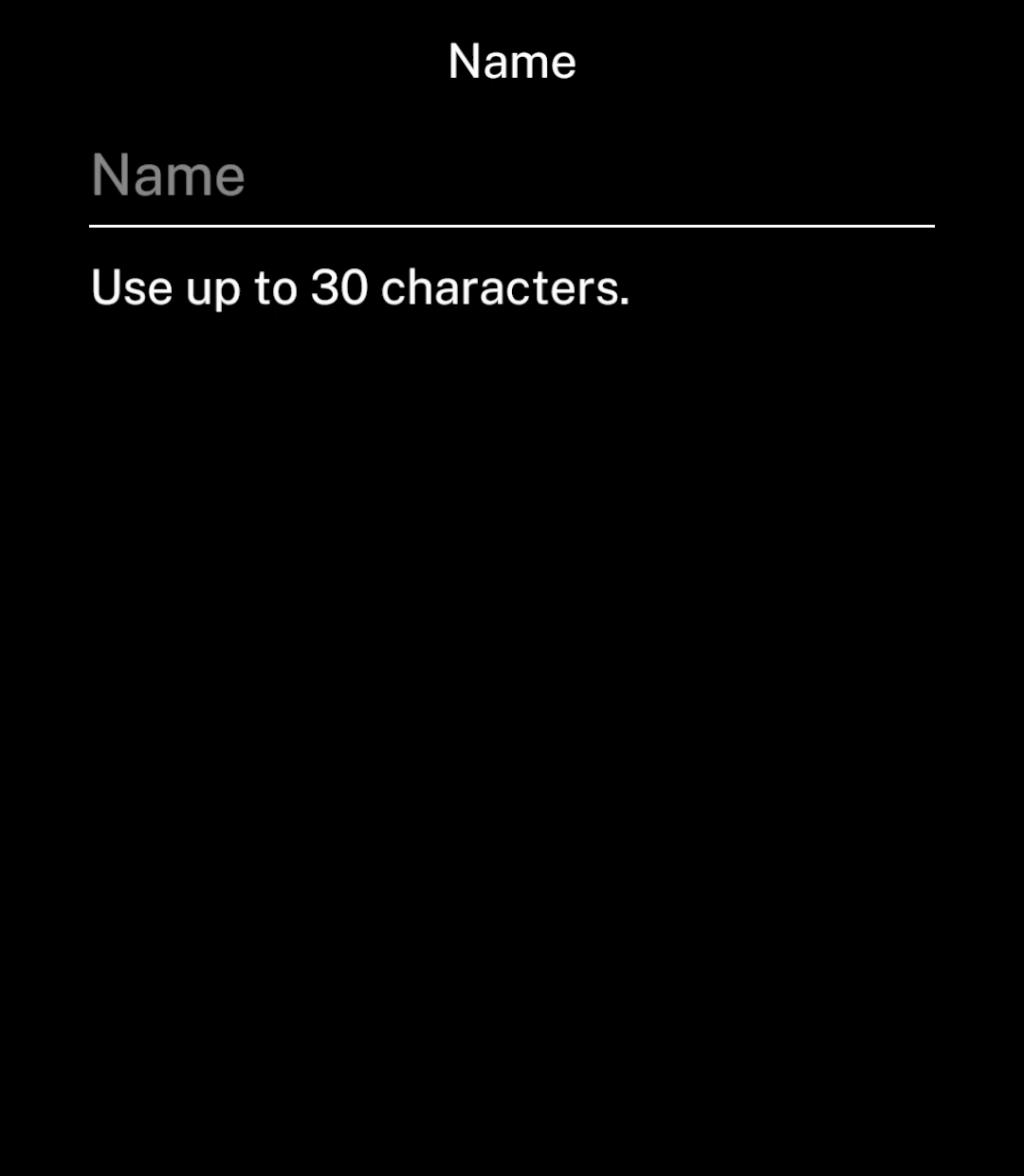
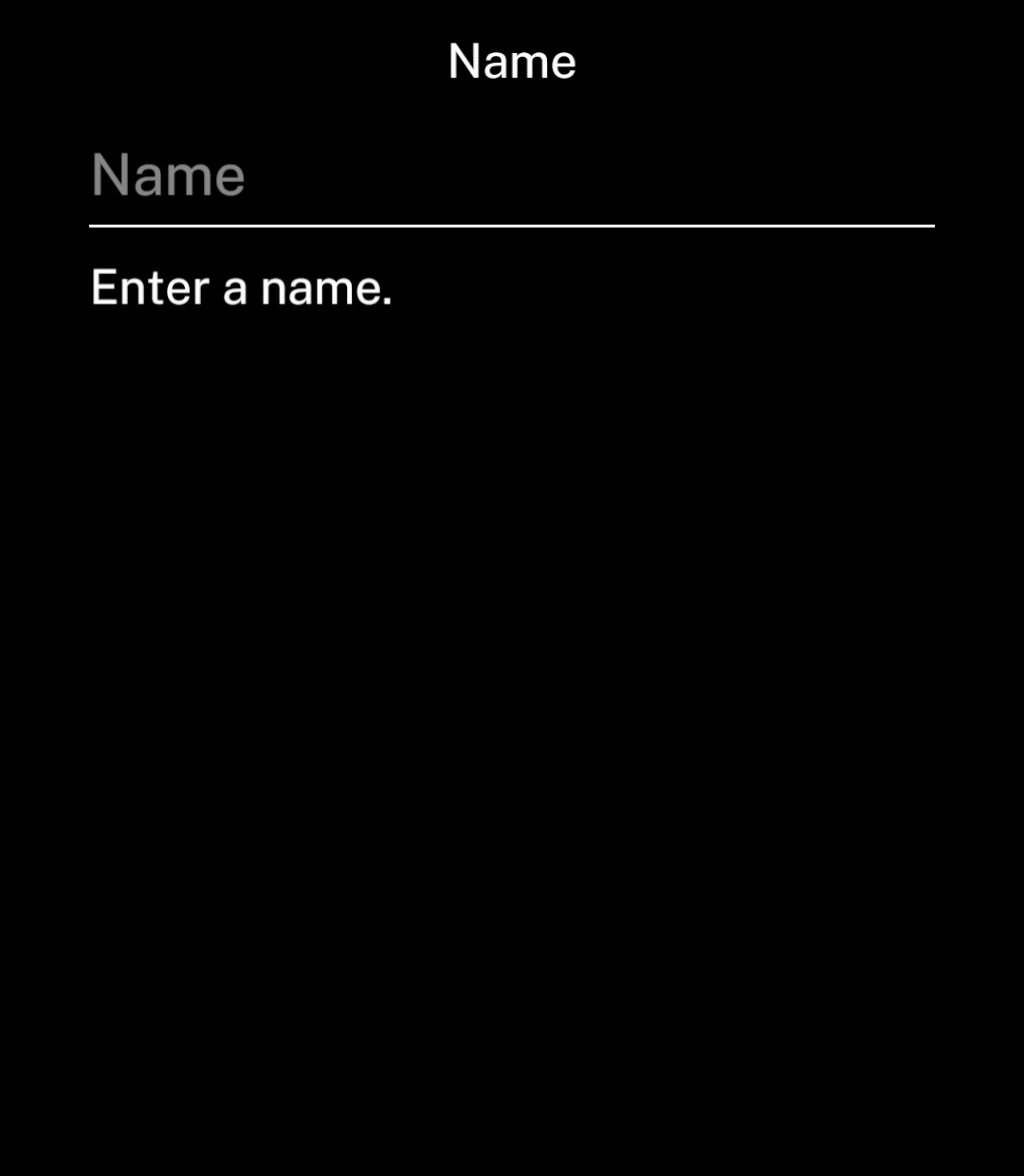
Place inputs on their own page, with hints or errors underneath.
import { useState } from "react";
import { Screen, TextInput } from "ink";

export default function Search() {
  const [query, setQuery] = useState("");

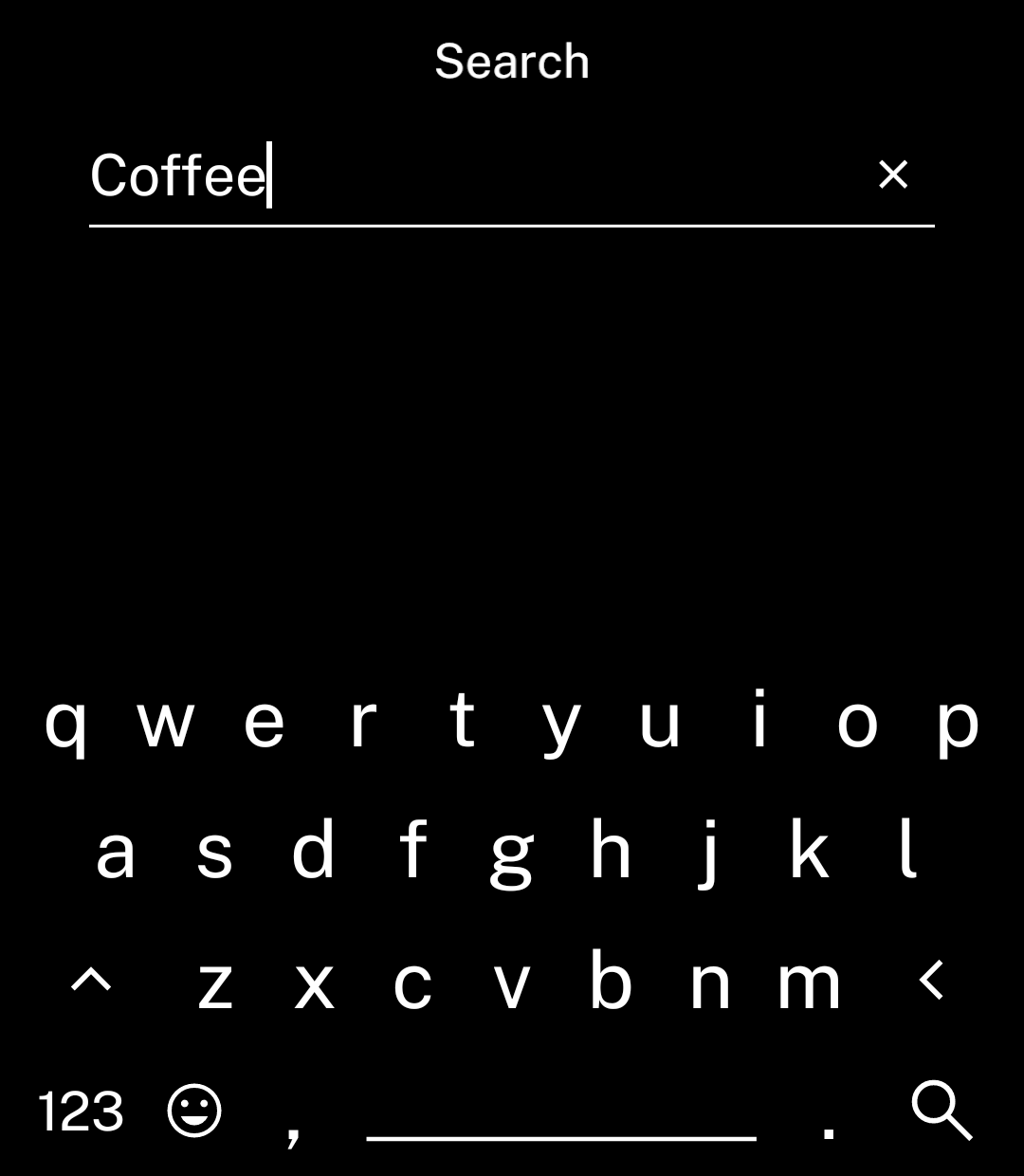
  return <Screen title="Search">
    <TextInput
      value={query}
      onChange={setQuery}
      placeholder="Search"
      action="search"
    />
  </Screen>;
}
Keyboard action
action requests a “search” or “done” key. Its appearance depends on the selected keyboard.
Both call onSubmit with the entered text. Without it, they dismiss the keyboard.
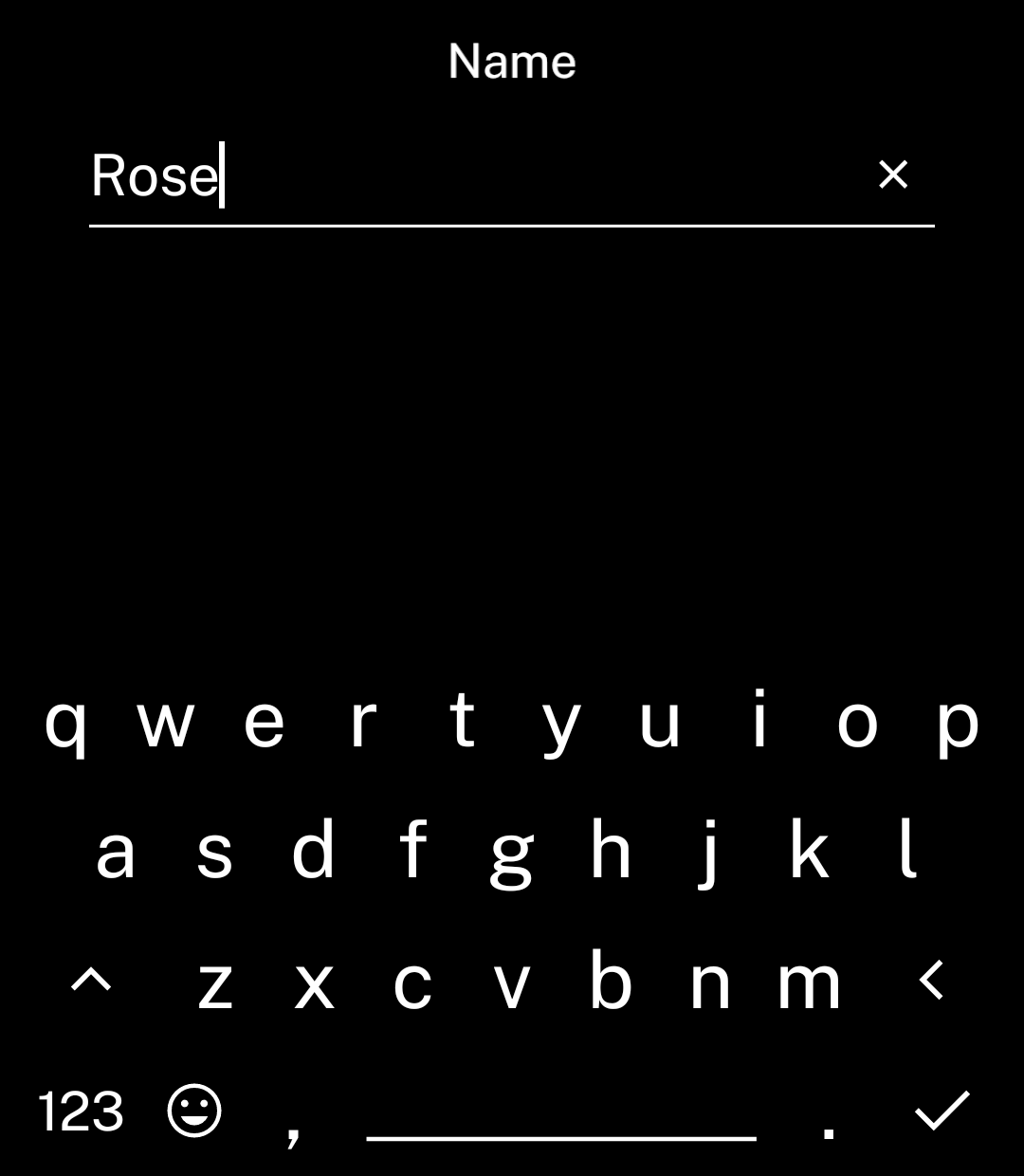
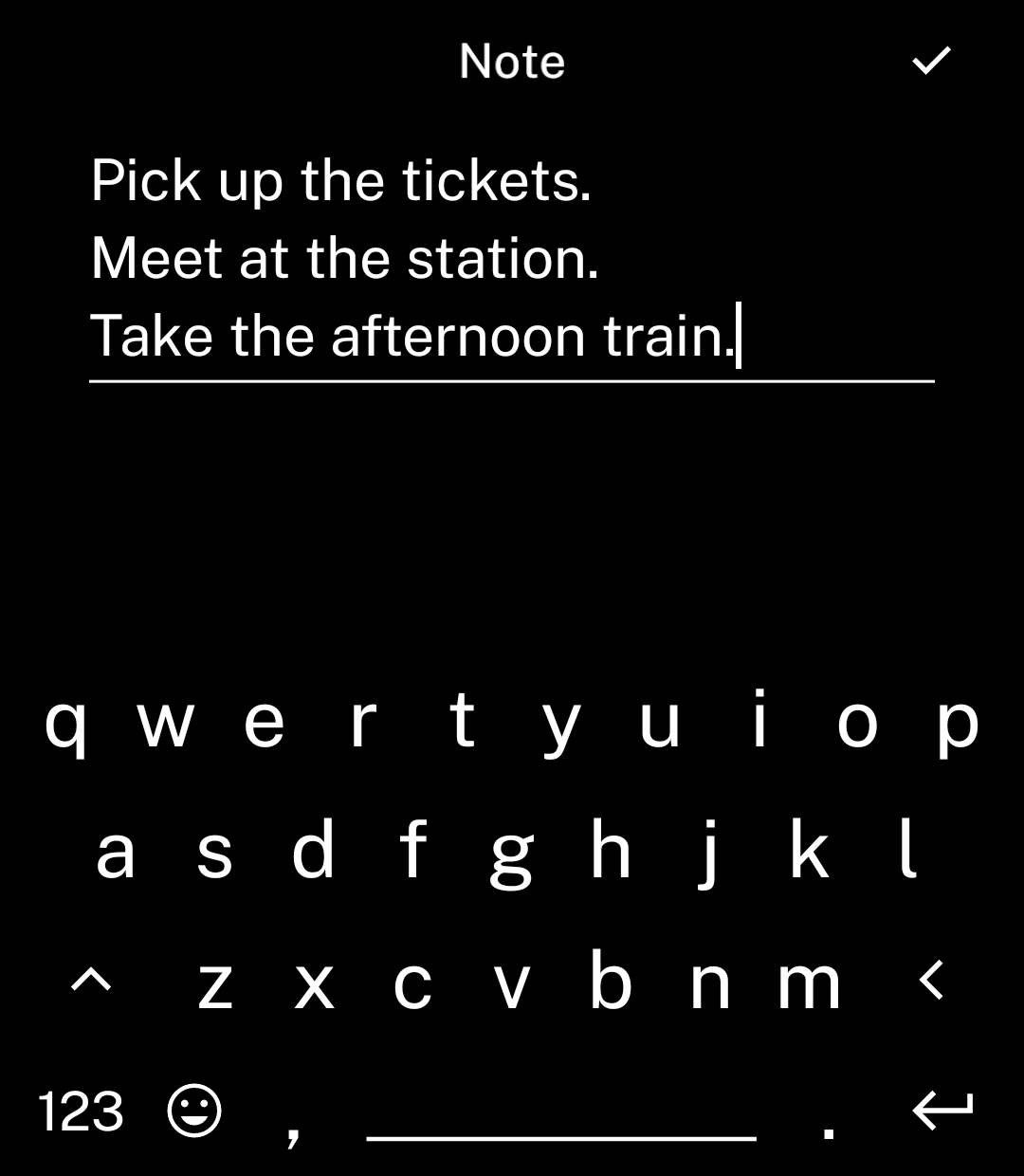
Use action=“return” for new lines. Add a header rightAction to save or continue. The input grows to three lines, then scrolls.
import { check } from "ink/icons";

<Screen
  title="Note"
  rightAction={{ icon: check, onPress: () => save(note) }}
>
  <TextInput
    value={note}
    onChange={setNote}
    placeholder="Write a note"
    action="return"
  />
</Screen>
save is your function to save the text and leave the page.
Numbers
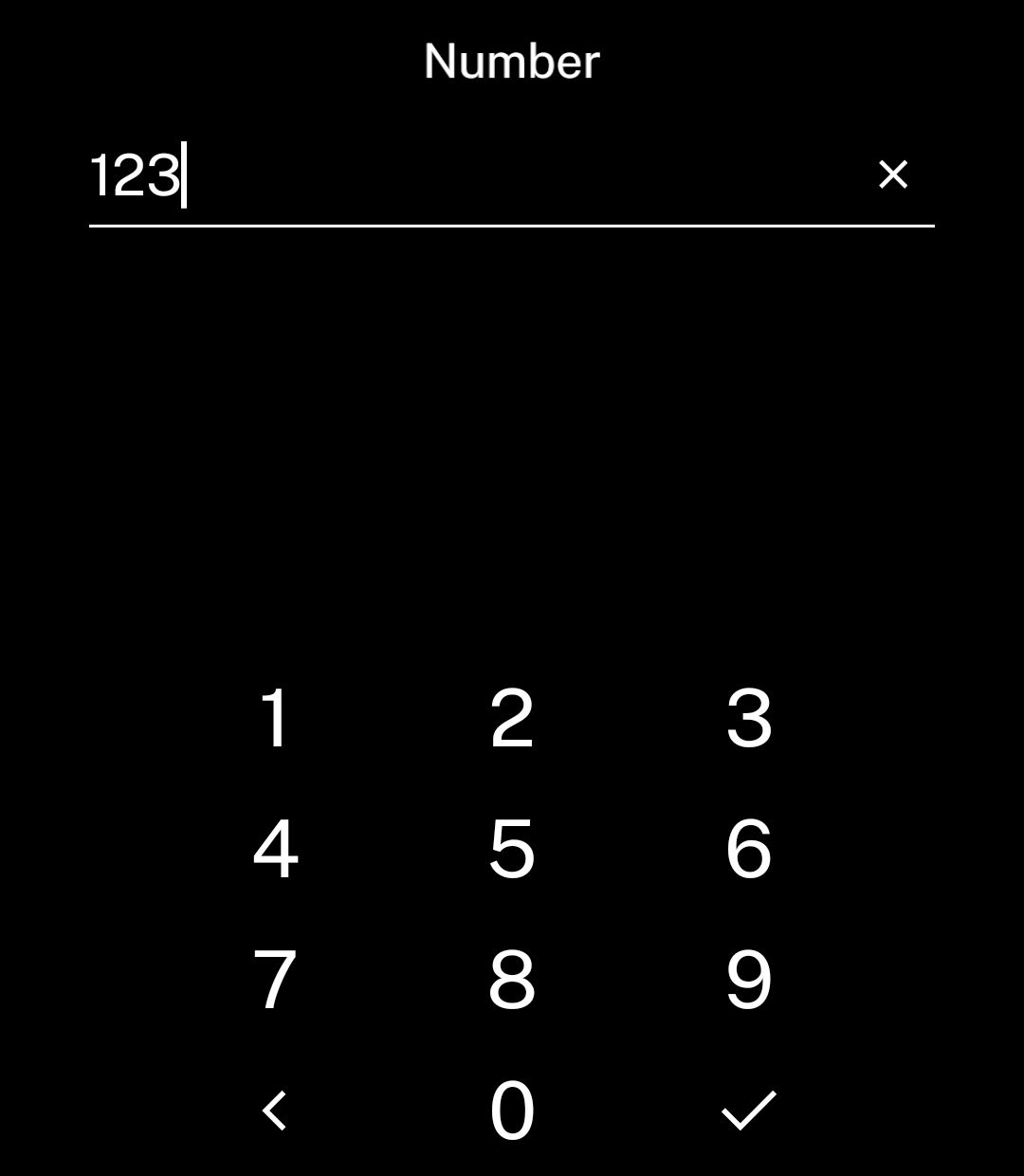
Use inputMode=“numeric” for digits only. The value remains a string.
<TextInput
  value={value}
  onChange={setValue}
  placeholder="Enter a number"
  inputMode="numeric"
  action="done"
/>
Prefix and suffix
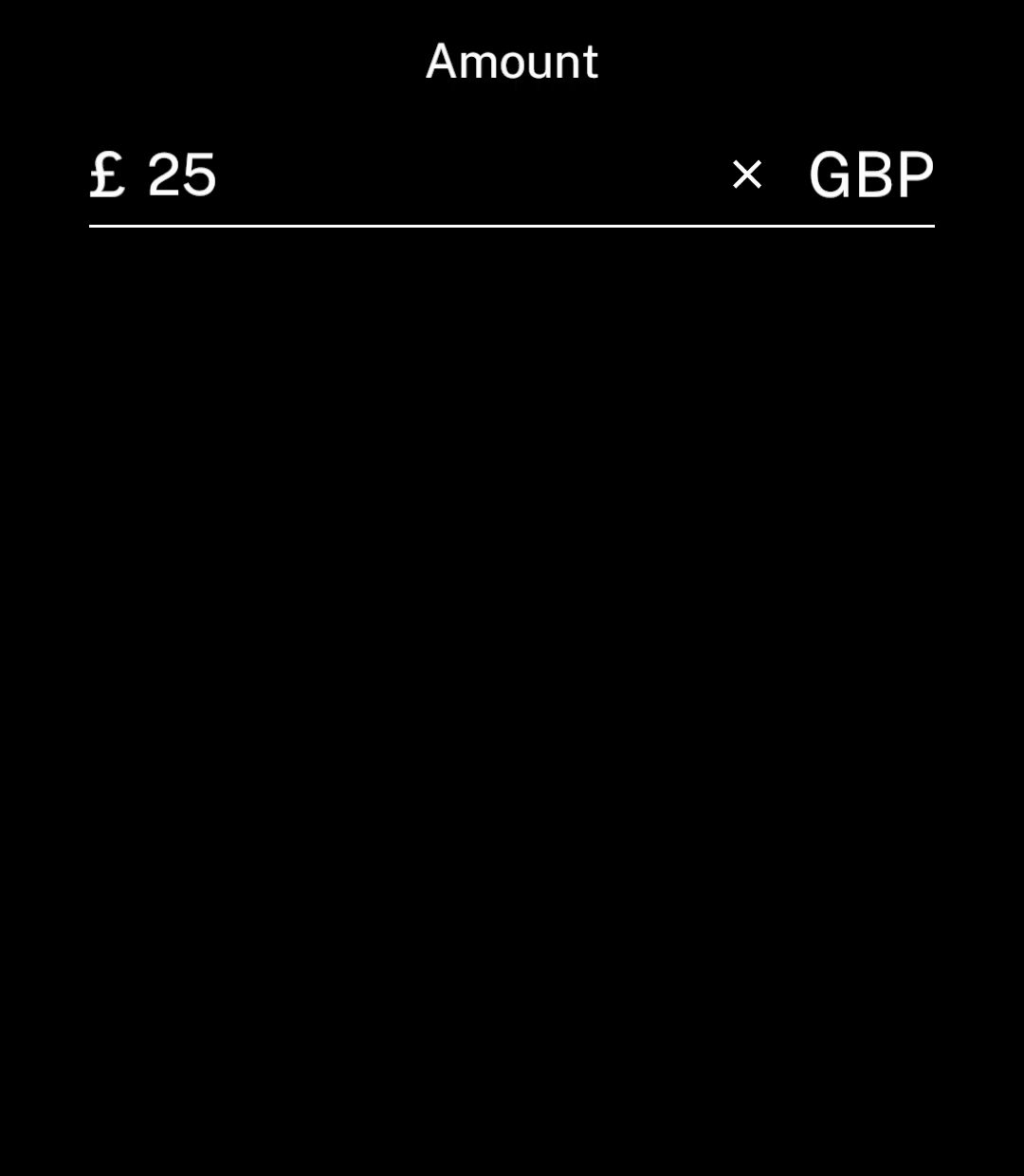
Use prefix and suffix for fixed text. Neither is included in the value.
<TextInput
  value={value}
  onChange={setValue}
  placeholder="Amount"
  inputMode="numeric"
  action="done"
  prefix="£"
  suffix="GBP"
/>
Hints and errors
Place a small Text component below the input.
<Stack gap={12}>
  <TextInput
    value={name}
    onChange={setName}
    placeholder="Name"
    action="done"
    onSubmit={value => setError(
      value.trim() ? "" : "Enter a name."
    )}
  />
  <Text size={20}>
    {error || "Use up to 30 characters."}
  </Text>
</Stack>